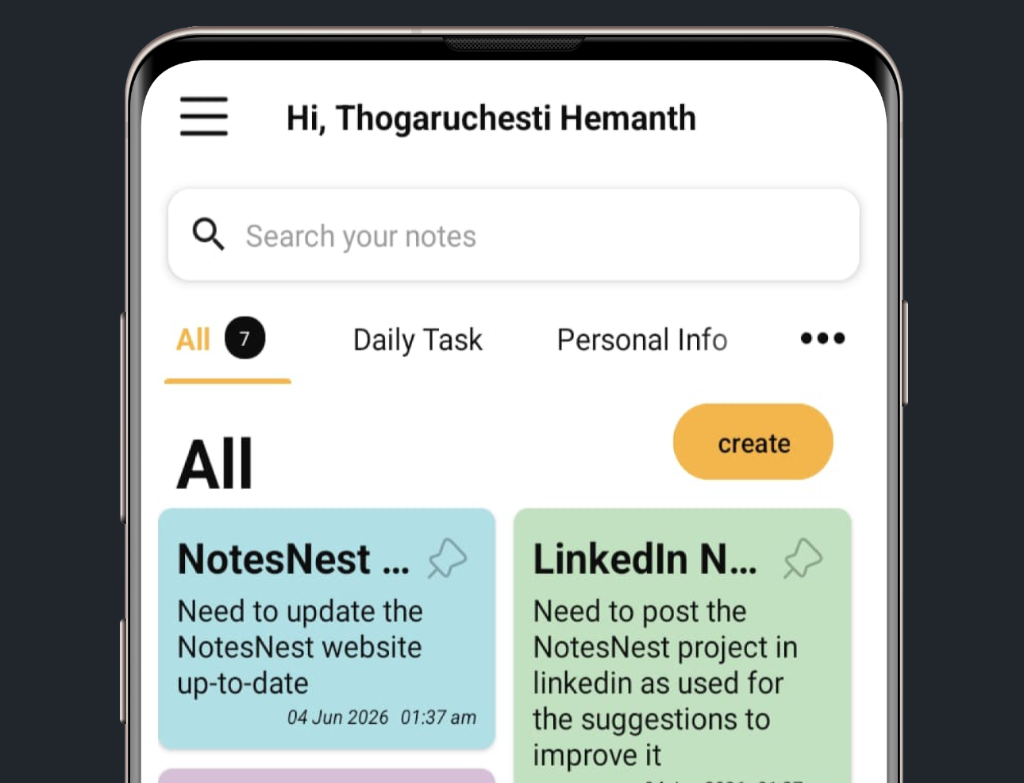
NoteNest User Guide
Welcome to NoteNest! This comprehensive guide will help you master all features and get the most out of your productivity companion.
Current Version: 3.0.0 | Last Updated: December 22, 2025 | Platform: Android 6.0+
Quick Navigation
Getting Started
Installation
- Download from Google Play: Visit the NoteNest page on Google Play Store and tap "Install"
- Open the App: Once installed, tap "Open" or find the NoteNest icon in your app drawer
- Create Account or Sign In: Choose to create a new account with email/password or use Google Sign-In
Creating Your Account
Email Sign-Up
Enter your email, create a strong password (8+ characters with uppercase, lowercase, number, and symbol), and choose a username.
Google Sign-In
Tap "Sign in with Google" for quick access using your existing Google account. Your name, email, and profile picture will be imported.
Pro Tip
Use a strong, unique password for your account. NoteNest uses encrypted storage to protect your credentials—we never store passwords in plain text.
First-Time Setup
- Complete Onboarding: Swipe through the intro screens highlighting key features
- Grant Permissions: Allow notifications (for reminders), storage access (for backups), and other requested permissions
- Customize Your Profile: Tap the profile icon to add a display name and profile picture
- Choose Your Theme: Select Light or Dark mode in Settings, or enable auto-switch based on system settings
Managing Notes
Creating a New Note
- Tap the "+" Button: Located at the bottom-right corner of the main screen
- Add Title: Enter a descriptive title for your note
- Write Content: Type your note content in the main text area
- Assign Category (Optional): Tap "Category" to organize your note
- Save: Tap the save icon or press back—notes auto-save as you type
Editing Notes
- Tap any note from your list to open and edit it
- Changes are saved automatically
- Use the formatting toolbar for text styling (if available in your version)
Deleting Notes
- Swipe to Delete: Swipe left or right on a note in the list
- Menu Option: Open the note and tap the delete icon
- Bulk Delete: Long-press to select multiple notes, then tap delete
Important
Deleted notes cannot be recovered unless you have a recent backup. Always backup important data regularly!
Important Notes Feature
Mark notes as "Important" to access them quickly in a dedicated section:
- Open a note and tap the star/flag icon to mark as important
- Access all important notes from the navigation drawer
- Perfect for frequently referenced information
View Options
List View
Classic linear layout showing notes one below another. Ideal for detailed previews.
Grid View
2-3 column grid layout for viewing more notes at once. Great for visual organization.
Toggle between views using the view switcher icon in the toolbar.
Reminders & Notifications
Creating a Reminder
- Open Reminders: Tap "Reminders" from the navigation drawer
- Add New Reminder: Tap the "+" button
- Enter Details: Add title, description, and any additional notes
- Set Date & Time: Choose when you want to be reminded
- Configure Repeat (Optional): Set daily, weekly, or custom repeat patterns
- Save: Tap save to schedule your reminder
Managing Reminders
- View All Reminders: Access from the navigation drawer
- Edit Reminder: Tap on any reminder to modify details or timing
- Complete/Dismiss: Swipe or tap checkmark when done
- Delete: Swipe to remove unwanted reminders
How Reminders Work
NoteNest uses WorkManager and AlarmManager to ensure reliable notification delivery. Reminders display the note title and scheduled time when they trigger.
Notification Settings
- Go to Settings > Notifications to customize reminder alerts
- Adjust notification sound, vibration, and priority
- Enable/disable notification previews on lock screen
Reminders Not Working?
For Xiaomi (MIUI), Vivo, Oppo, Realme users: These devices have aggressive battery optimization that can prevent reminders. Fix this by:
- Go to Settings > Battery > App Battery Management
- Find NoteNest and disable battery optimization
- Enable "Autostart" permission for NoteNest
- Lock NoteNest in recent apps (prevent closing)
Organization & Categories
Using Categories
Categories help organize notes by topic, project, or any classification system you prefer.
Creating Categories
- Open Categories: Tap "Categories" in the navigation drawer or settings
- Add New Category: Tap "+" and enter a category name
- Assign Colors (if available): Choose a color to visually distinguish categories
Assigning Categories to Notes
- When creating/editing a note, tap the "Category" field
- Select from your existing categories or create a new one
- One note can have one primary category
Filtering & Searching
Search
Use the search bar (magnifying glass icon) to find notes by title or content. Search is debounced for optimal performance.
Filter by Category
Tap the filter icon and select a category to view only notes in that category.
Sort Options
Sort notes by date created, last modified, title (A-Z), or category using the sort menu.
Drag & Drop Reordering
Long-press and drag notes to manually reorder them. Your custom order is saved automatically.
To-Do Lists
- Access To-Do Lists: Open from the navigation drawer
- Add Tasks: Tap "+" to create new tasks
- Mark Complete: Tap checkbox when finished
- Track Progress: View completion status at a glance
Wish Lists
Create wish lists for future goals, shopping lists, or aspirations. Works similarly to to-do lists but focused on things you want to achieve or acquire.
Home Screen Widgets
Available Widgets
Note Preview Widget
Display a selected note directly on your home screen for quick reference.
Quick Add Widget
Instantly create new notes without opening the app—perfect for capturing ideas on the go.
Adding Widgets to Home Screen
- Long-Press Home Screen: Touch and hold an empty area on your Android home screen
- Select Widgets: Tap "Widgets" from the options menu
- Find NoteNest: Scroll through the widget list to find NoteNest
- Choose Widget Type: Select either Note Preview or Quick Add widget
- Drag to Place: Drag the widget to your desired location
- Configure (Note Preview): If using Note Preview, select which note to display
Widget Customization
- Resize: Long-press widget and drag corners to resize
- Update Content: For Note Preview, long-press and select "Configure" to change displayed note
- Remove: Long-press and drag to "Remove" at the top of screen
Widget Tips
- Place Quick Add widget on your main home screen for fastest access
- Use Note Preview widget for important info you reference frequently
- If widget doesn't update, try removing and re-adding it
Widget Update Delays
Some OEM launchers (Samsung, Xiaomi, etc.) may delay widget updates. This is a launcher limitation, not a NoteNest issue. Force-refresh by opening the app or removing/re-adding the widget.
Backup & Restore
Why Backup?
Regular backups protect your notes, reminders, and settings from:
- Device loss, theft, or damage
- Accidental app uninstallation
- Data corruption or device factory reset
- Switching to a new phone
Local Backup
Creating a Local Backup
- Open Settings: Tap the menu icon and select "Settings"
- Navigate to Backup: Find "Backup & Restore" section
- Create Backup: Tap "Create Local Backup"
- Choose Location: Select where to save (Downloads, Documents, or custom folder)
- Backup Complete: An encrypted .db file is saved to your device
About Local Backups
Local backups are encrypted SQLite database exports. Nobody can read your backup files without the NoteNest app—your data stays private!
Restoring from Local Backup
- Open Settings > Backup & Restore
- Tap "Restore from Local Backup"
- Select Backup File: Choose the .db backup file
- Confirm Restore: Warning: This will replace current data
- App Restarts: NoteNest will restart to load restored data
Cloud Backup (Google Drive)
Enabling Cloud Backup
- Open Settings > Backup & Restore
- Tap "Enable Cloud Backup"
- Sign in to Google: Authorize NoteNest to access your Google Drive
- Choose Backup Frequency: Manual, daily, or weekly
- Create First Backup: Tap "Backup Now"
Restoring from Cloud Backup
- Open Settings > Backup & Restore
- Tap "Restore from Cloud"
- Sign in to Google Drive
- Select Backup: Choose from available backups (shows date/time)
- Confirm and Restore
Backup Best Practices
- Create backups before major Android updates
- Keep at least 2-3 recent local backups on different storage locations
- Enable automatic cloud backup for peace of mind
- Test your backups occasionally by restoring on a secondary device
Managing Your Backups
- View Backup History: See when last backup was created
- Delete Old Cloud Backups: Manage via Google Drive app or web interface
- Transfer Backups: Copy local backup files to computer or cloud storage
Export & Share
Export Formats
NoteNest allows you to export individual notes in multiple formats:
Plain Text (.txt)
Simple, universal text format. Perfect for editing in any text editor.
PDF Document
Professional format for sharing or printing. Preserves formatting and layout.
Image (PNG/JPG)
Visual snapshot of your note. Great for social media or quick sharing.
How to Export a Note
- Open the Note: Tap the note you want to export
- Open Export Menu: Tap the three-dot menu icon
- Select "Export"
- Choose Format: Select Text, PDF, or Image
- Select Destination: Choose where to save the exported file
- Export Complete: File is saved to your chosen location
Sharing Notes
- Open the Note
- Tap Share Icon: Look for the share/send icon
- Choose Export Format: Select how to share (text, PDF, or image)
- Select App: Choose email, WhatsApp, Telegram, or any other sharing app
- Send: Complete sharing through your chosen app
Sharing Apps Supported
NoteNest uses Android's native share intent, so you can share to any app installed on your device including: Email, WhatsApp, Telegram, Gmail, Drive, Dropbox, Slack, and more!
Export Tips
- PDF for Professional Use: Best for work documents or formal sharing
- Text for Flexibility: Easily editable and compatible everywhere
- Image for Quick Sharing: Fastest way to share on social media
Large Note Performance
Exporting very large notes (1000+ words) or notes with many images as image format may take longer on devices with less than 3GB RAM. Use PDF or text export for better performance with large content.
Settings & Customization
Accessing Settings
- Tap the menu icon (☰) in the top-left corner
- Select "Settings" from the navigation drawer
Appearance Settings
Theme
Light Mode: Bright, clean interface
Dark Mode: Easy on eyes, saves battery on
OLED screens
Auto: Follows system theme settings
Text Size
Adjust note text size for comfortable reading. Changes apply to all notes.
Color Scheme
Customize accent colors and UI elements (if available in your version).
Account Settings
- Profile: Edit display name and profile picture
- Email: Update account email address
- Password: Change your password (requires current password)
- Connected Accounts: Manage Google Sign-In integration
Privacy Settings
- Usage Analytics: Toggle Firebase Analytics data collection
- Crash Reporting: Enable/disable Firebase Crashlytics
- Personalization: Control data used for app improvements
Notification Settings
- Enable/disable reminder notifications
- Customize notification sound
- Set vibration patterns
- Control notification priority and display
Data & Storage
- Storage Usage: View how much space NoteNest uses
- Cache Management: Clear temporary files
- Data Location: See where your data is stored
About
- Version Information: Check your current app version
- Developer Info: Contact and attribution details
- Licenses: View open-source licenses
- Release Notes: See what's new in this version
Performance Tip
Enable Dark Mode on OLED/AMOLED screens (Samsung, OnePlus, Pixel) to save battery and reduce eye strain.
Troubleshooting & FAQs
Common Issues & Solutions
1. Reminders Not Triggering
Problem: Reminders don't show up at scheduled time
Solution for Xiaomi (MIUI), Vivo, Oppo, Realme:
- Settings > Battery > App Battery Management > NoteNest
- Disable battery optimization
- Enable "Autostart" permission
- Lock app in recent apps screen
For All Devices:
- Ensure notifications are enabled in Android Settings
- Check that NoteNest has notification permission
- Verify reminder is set for future time (not past)
2. Widget Not Updating
Solutions:
- Open NoteNest app to force widget refresh
- Remove widget and re-add it to home screen
- Ensure NoteNest has sufficient battery permissions
- Some launchers (Nova, Apex) may have widget refresh settings—check launcher settings
3. Google Sign-In Delays or Fails
Solutions:
- First-time sign-in may take 10-15 seconds for token refresh—be patient
- Ensure you have active internet connection
- Check that Google Play Services is up to date
- Try signing out and back in to Google account on device
- Clear NoteNest cache: Settings > Apps > NoteNest > Clear Cache
4. App Crashes or Freezes
Solutions:
- Ensure you're running the latest version (check Play Store for updates)
- Restart your device
- Clear app cache (Settings > Apps > NoteNest > Clear Cache)
- If problem persists, report via Bug Report page
- As last resort: Backup data, then Clear Data and restore from backup
5. Export Fails or Takes Too Long
Solutions:
- For large notes, use Text or PDF export instead of Image format
- Ensure you have sufficient storage space
- Grant storage permissions to NoteNest
- Close other apps to free up memory
- On low-end devices, export smaller notes or reduce image quality
6. Backup or Restore Issues
Solutions:
- Ensure sufficient storage space (backup needs 2x data size)
- For cloud backup, verify Google Drive has space and you're connected to WiFi
- Check that backup file isn't corrupted (try opening with file manager)
- Ensure backup was created with same or newer app version
7. Slow Performance or Lag
Solutions:
- NoteNest is optimized for 1000s of notes, but very old devices may struggle
- Clear app cache periodically
- Reduce number of widgets (each widget uses resources)
- Close apps running in background
- Consider archiving old notes by exporting and deleting from app
Getting Help
Email Support
saihemanth225@gmail.com
Response within 24-48 hours
Report Bug
Use our Bug Report form for technical issues
Send Feedback
Share ideas via Feedback page
System Requirements
- Android Version: 6.0 (Marshmallow) or higher
- Storage: Minimum 50MB free space
- RAM: 1GB minimum, 2GB+ recommended
- Internet: Required for Google Sign-In, cloud backup, and crash reporting
- Permissions: Notifications, Storage, Internet access
Additional Resources
Home Page
Visit NoteNest homepage for app overview and download links
Privacy Policy
Read our Privacy Policy to understand how we protect your data
Terms of Service
Review Terms of Service for usage guidelines and legal information
Delete Account
Account deletion information and process
Thank You for Using NoteNest!
We hope this guide helps you get the most out of NoteNest. If you have questions not covered here, don't hesitate to contact us. Happy organizing!
Guide Version: 3.0 |
Last Updated: December 26, 2025
Developed by: Thogoruchesti Hemanth